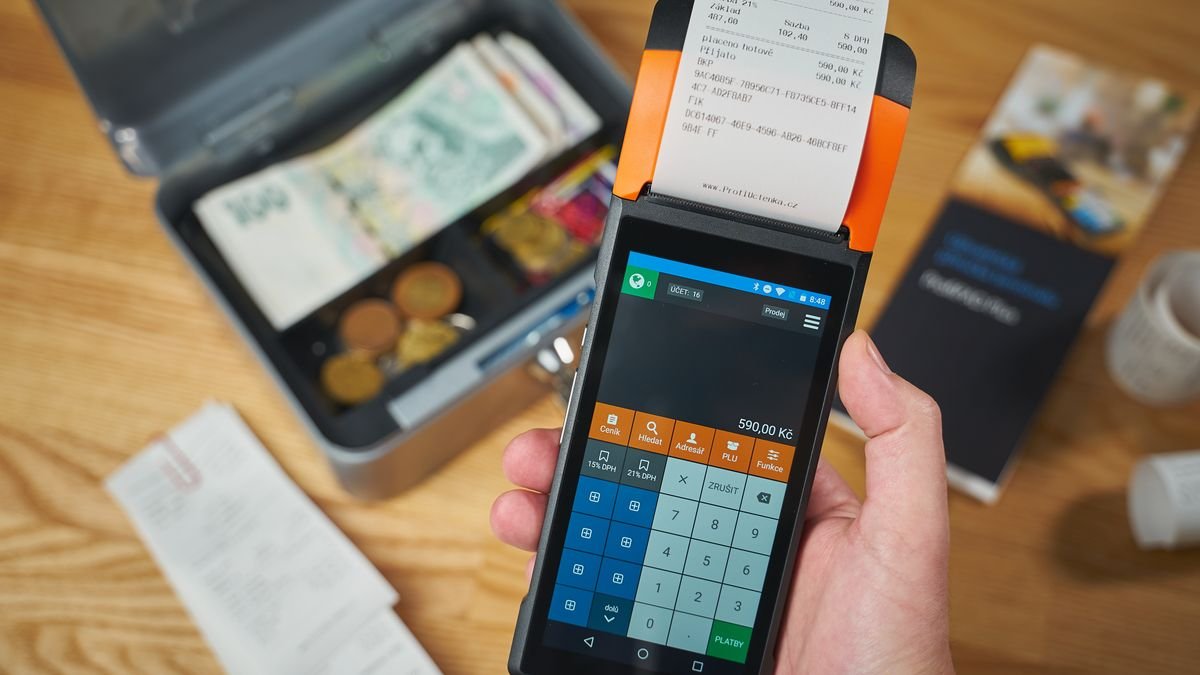
A thermal receipt printer is a small device that works nonstop at the cashier counter. When it jams or is not detected during rush hour, the queue grows immediately. Choosing the right type from the start saves time and money. Here is what to consider.
How thermal printers work
Thermal printers print using heat on special paper, so they need no ink or ribbon. Maintenance is simpler and printing is fast. The trade-off is that prints can fade if exposed to heat or direct sunlight for a long time, so receipts that must be kept for years should be photographed or stored digitally.
58 mm or 80 mm
- 58 mm: compact, suited to small shops, kiosks, or cramped counters. Fewer characters fit per line, so long menu names get cut off or wrap.
- 80 mm: roomier for long order lists, tax details, QR codes, or logos. A common choice for cafés and restaurants, and also for printing kitchen tickets.
Use the same paper width on the printer and in your POS app settings, because a mismatch often causes cut-off or shifted prints.
Connection types
USB
The simplest and most stable option for a single cashier computer. The downside is that the cable limits placement and one printer serves only one computer.
LAN or Ethernet
The printer has its own network address, so several devices can print to it, which is ideal for a kitchen or bar printer receiving orders from several cashiers. Set a fixed IP address so it does not change after the router restarts.
Bluetooth
Convenient for phones, tablets, and mobile cashiers. Range is short and pairing can be troublesome on some devices. Suitable for kiosks and small vendors, less ideal where there are many devices at once.
Wi-Fi
Makes placement easy without cables, but depends on network quality. If your Wi-Fi is often congested, a wired connection is still more reliable.
Features worth considering
- Auto cutter: cuts the paper automatically so the cashier does not have to tear it by hand.
- Print speed: important for high-volume outlets.
- Cash drawer port: if you want the cash drawer to open automatically on each transaction.
- Buzzer: a sound alert for new orders, useful in the kitchen.
- Print head durability: usually listed in kilometers of printing. The higher the number, the longer it lasts.
Check compatibility before buying
Most receipt printers use the ESC/POS command language, but not every app supports every brand and model. Before buying, make sure your POS app supports the model, and check that drivers are available for your operating system, whether Windows, Android, or macOS.
Basic maintenance
- Use good-quality thermal paper so the print head does not get dirty quickly.
- Clean the print head regularly with a cotton swab and isopropyl alcohol while the printer is off and cool.
- Store paper rolls in a cool, dry place.
- Keep spare rolls, and a spare printer if your business depends heavily on receipts.
Conclusion
Decide your needs first: how long your receipts are, how many computers or devices will print, and whether you need kitchen tickets. From there the paper width and connection type are usually clear. Check compatibility with your POS app before buying, and do not forget to budget for paper and a backup device.